HelpCrunch chat widget has been already localized into several languages (GE, FR, ES, PT, RU, PL) — both for online and offline modes. You can also add your own phrases and localizations.
Create a phrase list
STEP 1. To localize the text into a new language, log into your HelpCrunch account and go to Settings → Website Widgets → Your Website → 'Localization' tab and click the 'Add localization' button.
STEP 2. Name the new Phrase List by indicating the language you need — for example, Dutch (NL). If you want to show this localization by default, check the corresponding checkbox.
STEP 3. Fill in all the fields with new phrases in the corresponding language and hit 'Apply' to save changes.
Go to your website and reload the page to switch the chat into the chosen language.
Choose default localization
After you mark one of the localizations as default, and disable unsuported languages in the list there are two different options:
- You can define which localization you want to display for which pages. For example, display French localization for www.yourdomain.com/fr and Russian localization for www.yourdomain.com.ru
- Display localizations based on the visitor's browser language. In case if visitor has some browser language that's not supported by your team (disabled in the list of localizations) - the default one will be displayed
Define localization for a specific page(s)
STEP 1. First of all, you need to name your phrase list with a two-letter standard code (let’s say 'en' for English). Check the full list of ISO 639-1 codes if you need help with names.
STEP 2. Add the following command to the chat widget JS code on your website:
HelpCrunch('setLocalization', 'en');Now the chat widget phrases will be automatically displayed in English — or any language you set.
Define localization automatically based on the visitor's language
You can automatically detect a visitor’s browser language and display your chat widget in the corresponding language:
STEP 1. All the phrase lists should be named with the help of the two-letter standard language codes (full list of ISO 639-1 codes).
STEP 2. Add the following command to the chat widget JS code on your website:
HelpCrunch('setLocalization', navigator.language.slice(0,2));Now, you don’t have to switch localizations manually. The chat widget phrases will be automatically selected from available localizations and displayed in the visitor’s language.
Set the knowledge base language in chat widget
Phrase lists only cover the chat texts. The Knowledge Base inside the widget has its own language. By default it matches the widget, and visitors can switch it manually (read more about the multilingual knowledge base here).
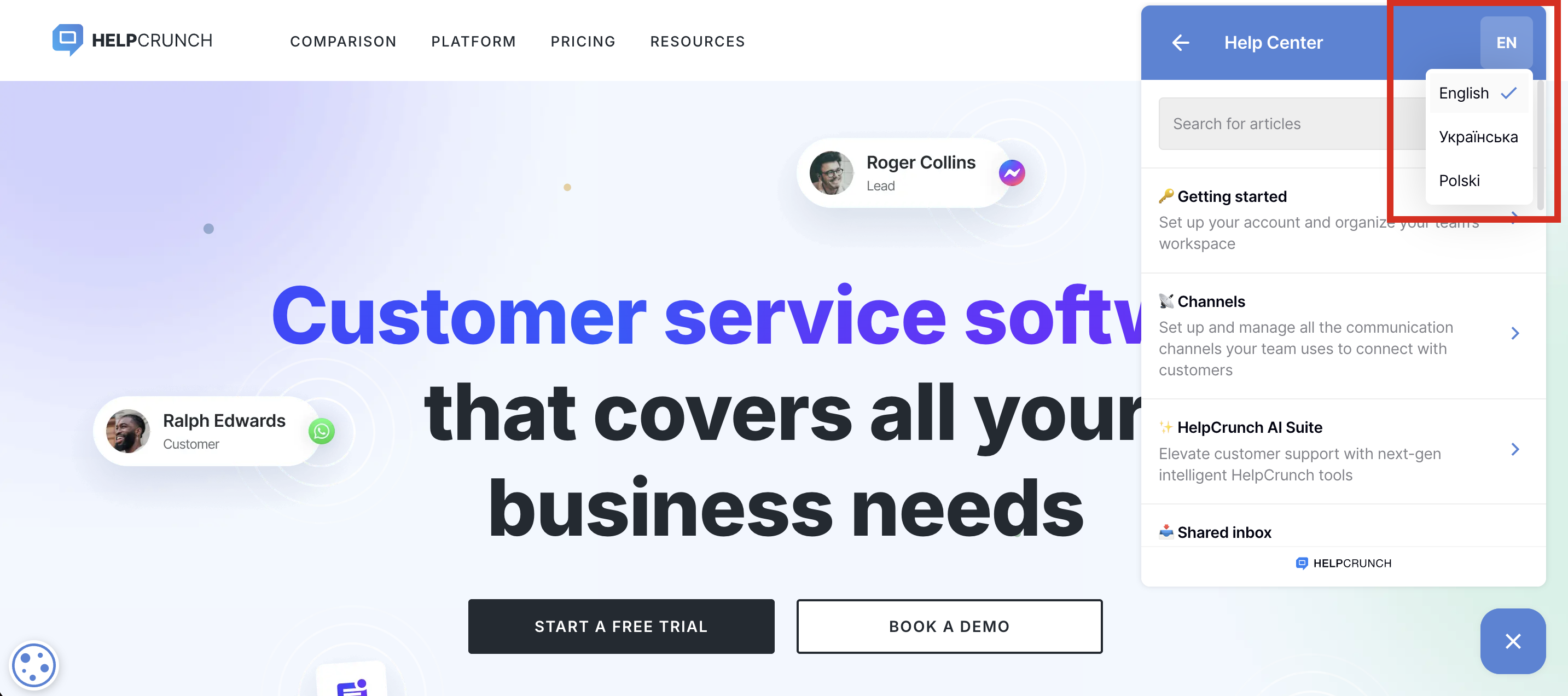
To force a specific Knowledge Base language, for example to keep it in sync with your website, use:
Parameters:
locale: string: two-letter language code (ISO 639-1), for example en, es, de.
HelpCrunch('setKnowledgeBaseLocalization', locale);
Example:
Your website has a language switcher. When a visitor switches to Spanish, show the Knowledge Base in Spanish too:
HelpCrunch('setLocalization', 'es');
HelpCrunch('setKnowledgeBaseLocalization', 'es');
To sync both the chat and the Knowledge Base with the visitor's browser language:
var lang = navigator.language.slice(0, 2);
HelpCrunch('setLocalization', lang);
HelpCrunch('setKnowledgeBaseLocalization', lang);
How it works:
- The language changes right away. You can call the method at any time.
- If you don’t call the method, nothing changes. The Knowledge Base keeps the language the visitor picked.
Note: the snippet above runs on every load, so it will override a language the visitor picked manually. Use it only if you want the Knowledge Base to always follow the browser language. Otherwise, call the method only when the language changes on your side.
Important: If you call the method on every widget load, it resets the Knowledge Base language on every page reload. A language the visitor picks manually only lasts until the next reload.
Tip: To keep the visitor’s choice, call the method only when the language of your website changes, not on every widget load.
