Accordions let you hide additional information under a clickable title. Readers can expand only the sections they need, which makes long articles easier to scan.
Example:
This is a sample accordion title. Click to expand
A text accordion box is a collapsible UI component that stacks a list of headers and expands to reveal hidden text content when clicked.
It is perfect for compressing long text, FAQs, or navigation lists into a sleek space-saving layout.
When to use accordions
Accordions are useful when you want to keep your article clean and easy to navigate. You can use them for:
- FAQ sections
- Long explanations
- Troubleshooting steps
- Optional details
- Extra instructions that not every reader needs
How to add an accordion
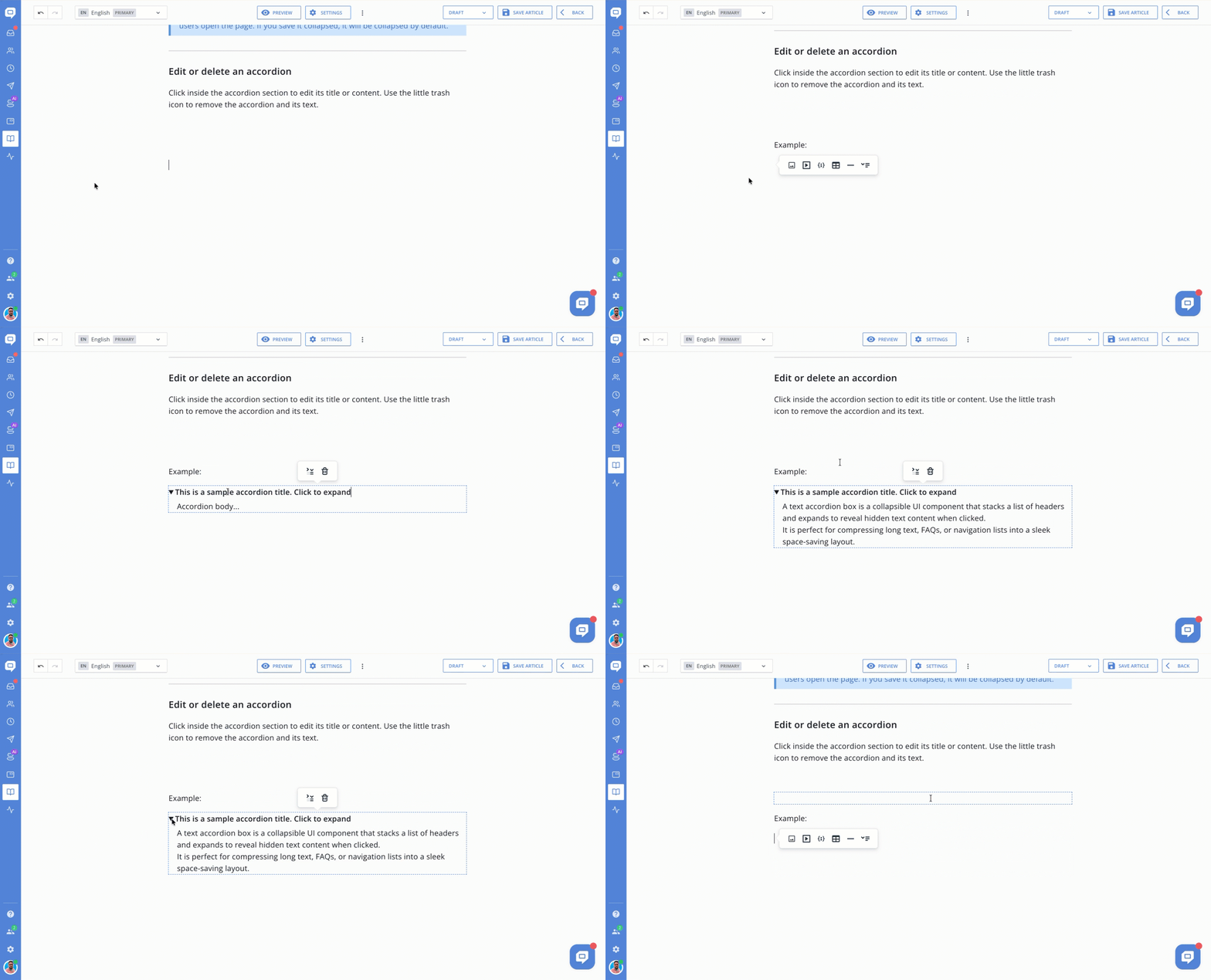
Open the article editor and place your cursor where you want to add an accordion.
- Hit Enter to open the context menu, then choose Accordion.

- Replace the "Accordion summary..." with your text. This is the text users will click to expand or collapse the section.
- Click inside the “Accordion body...” field and add your content. You can use text or insert other content blocks supported by the editor.
.gif)
Tip: The accordion keeps the same state after you save the article.
If you save the article with the accordion expanded, it will be expanded when users open the page. If you save it collapsed, it will be collapsed by default.
What you can add inside an accordion
An accordion can contain more than just text. You can add:
- Text
- Images
- Videos
- Code blocks
- Tables
- Horizontal lines
- Nested accordions
Add a nested accordion
You can place an accordion inside another accordion to organize related information into multiple levels.
Place your cursor inside the body of the parent accordion, hit Enter to open the context menu, and choose Accordion. Then add its title and content as usual.
Nested accordions are useful when a section covers several related topics that readers may want to expand separately.
Edit or delete an accordion
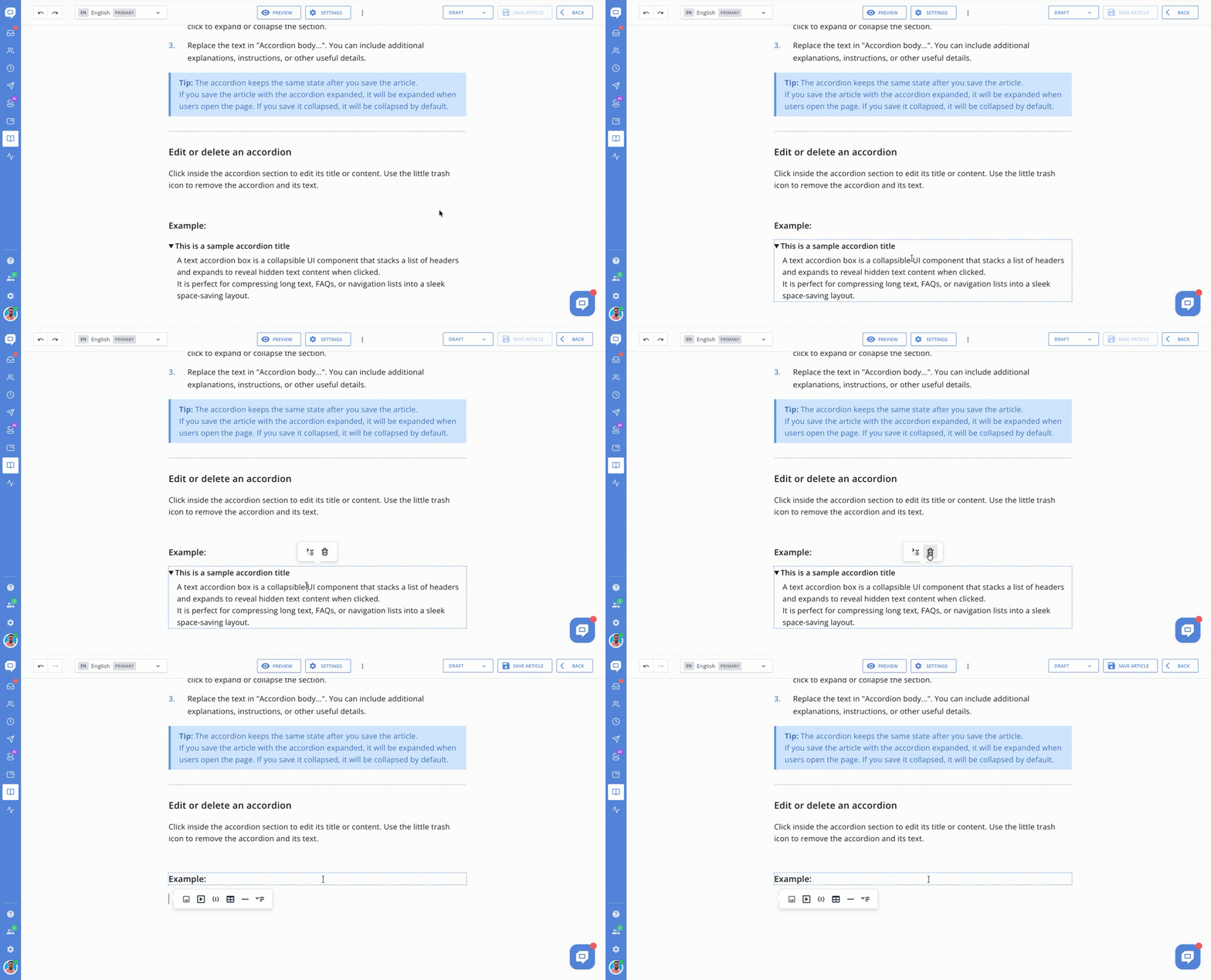
Click inside the accordion section to edit its title or content. Use the little trash icon to remove the accordion and its text.
.gif)
