After the conversation, chat history can be sent via email by several ways.
Sending chat transcripts manually
You can send a transcript directly from an open conversation.
To do this:
-
Open the chat in the Inbox.
-
Click the three-dot menu in the top-right corner.
-
Choose one of the following options:
-
Email transcript to client
-
Email transcript to me
-
This allows you to instantly send the full conversation history without closing the chat.
Before sending a transcript to yourself for the first time, make sure your registration email address is confirmed.
HelpCrunch sends conversation transcripts to your registration email address. If this email address is not confirmed, the transcript email won’t be delivered.
To confirm your email address, go to My account → Account preferences and click Confirm email next to your registration email address. Read more

Manual sending is useful when:
-
A customer specifically asks for a transcript
-
You need to forward the conversation immediately
-
You want to send a transcript before closing the chat
Sending chat transcripts automatically
You can also configure transcripts to be sent automatically when a chat is closed.
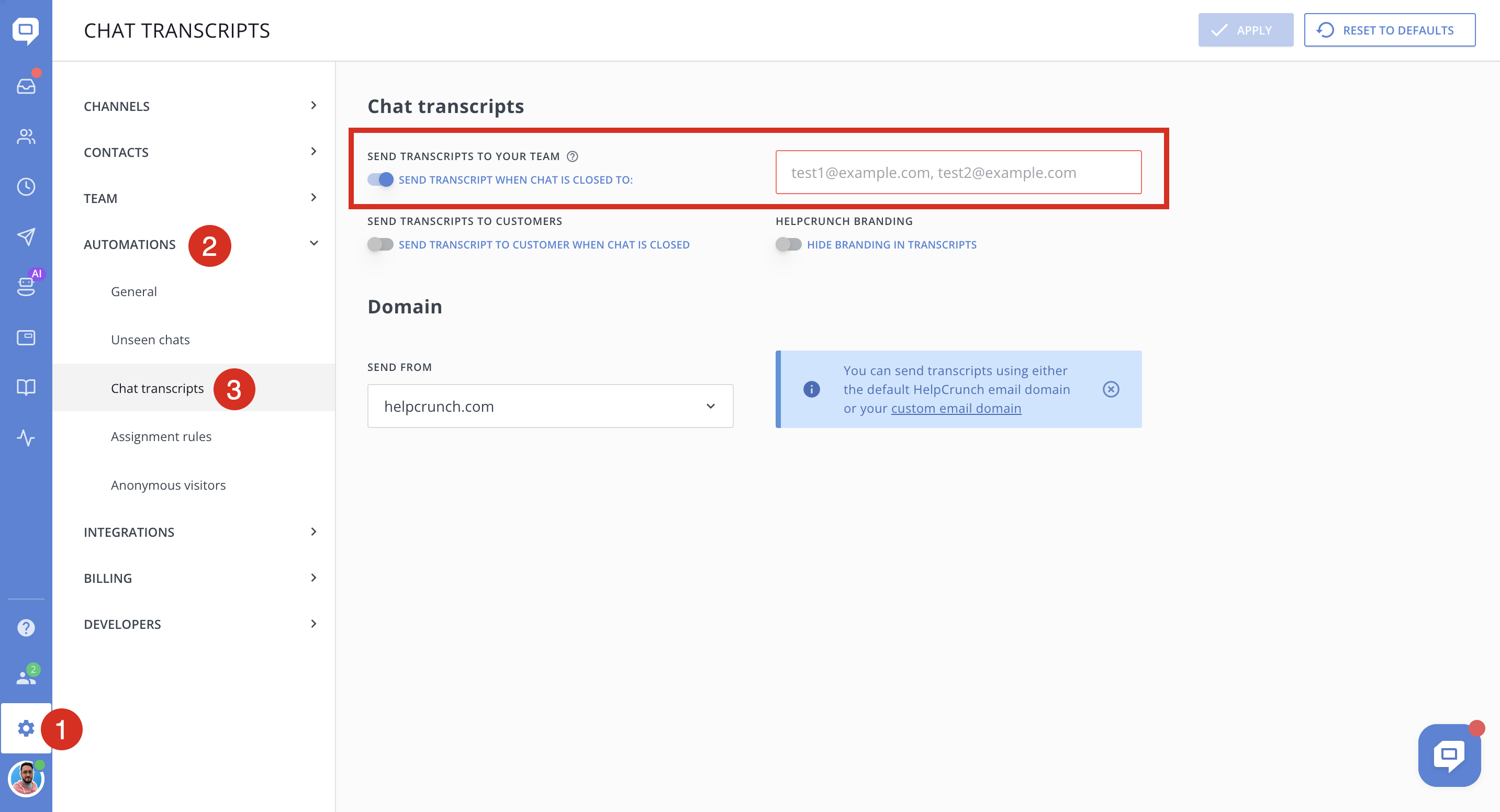
Go to Settings → Automations → Chat transcripts
There you can:
- Send transcripts to specific team email addresses (specify multiple addresses separated by comma)
-
Enable automatic sending to customers when a chat is closed
Additionally you can hide HelpCrunch branding (if available on your subscription plan) and choose a custom email domain the transcript emails will be sent from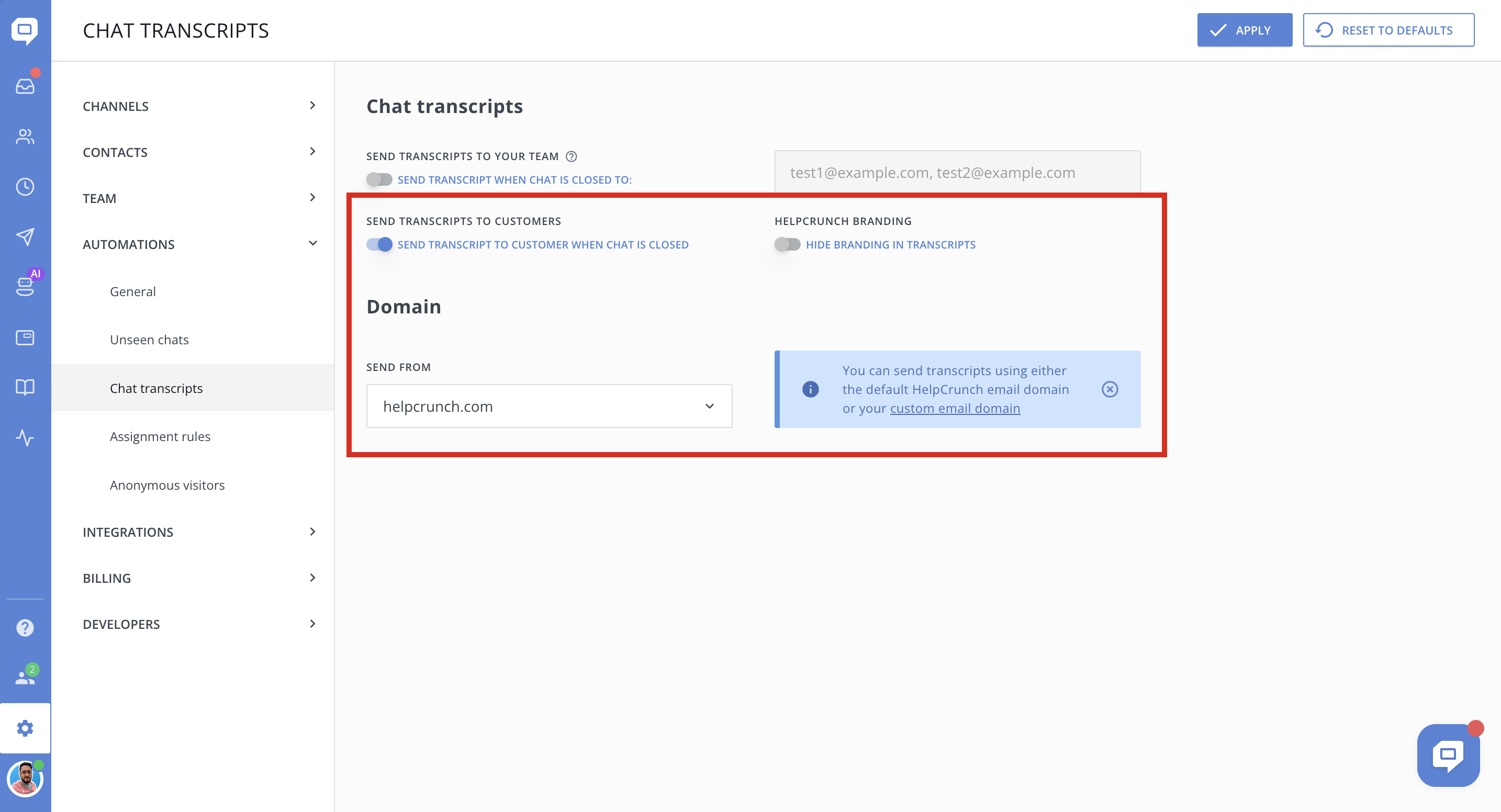
Automatic sending ensures that every closed conversation is documented without manual action from your team.
