
HelpCrunch Knowledge Base supports multiple languages, allowing you to provide help content for customers worldwide.
One language is always set as the primary language, and all other languages are created as translations of that primary version.
This structure ensures consistency, clear content management, and proper synchronization between languages.
Primary language
The primary language is the main version of your Knowledge Base.
-
Articles must first be created and published in the primary language.
-
Translations are based on the content of the primary language.
Translation languages
Additional languages are created as translations of the primary language.
Important rules:
-
A translation cannot be created or published if the article does not exist in the primary language.
The primary version must always be created first. -
If an article is disabled in the primary language, all its translations will be disabled automatically.
Language selector for visitors
Visitors can easily switch between available languages.
The language selector is available:
-
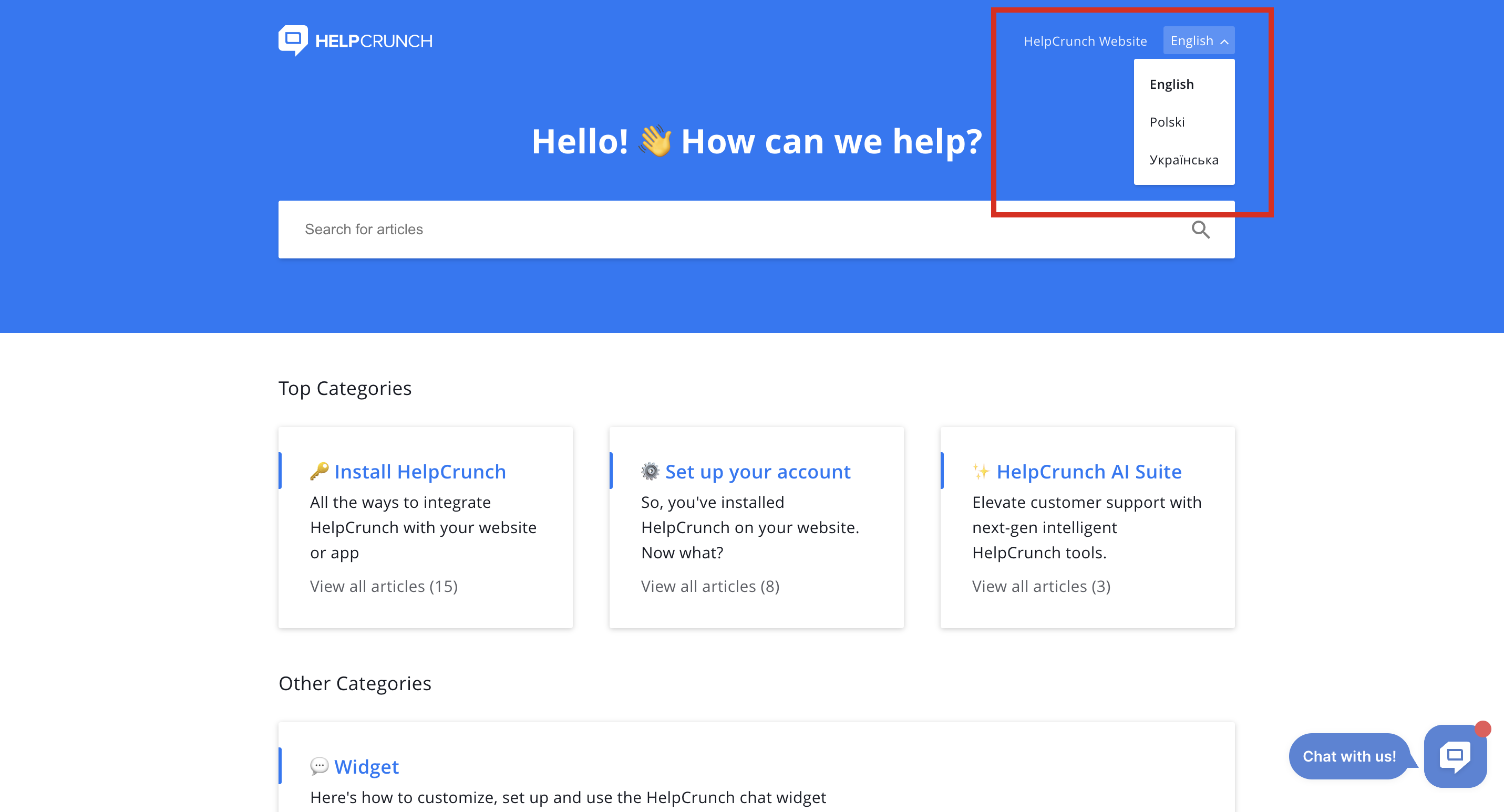
In the top-right corner of the Knowledge Base page:
-
Inside the HelpCrunch chat widget, when the Knowledge Base is opened from the widget:
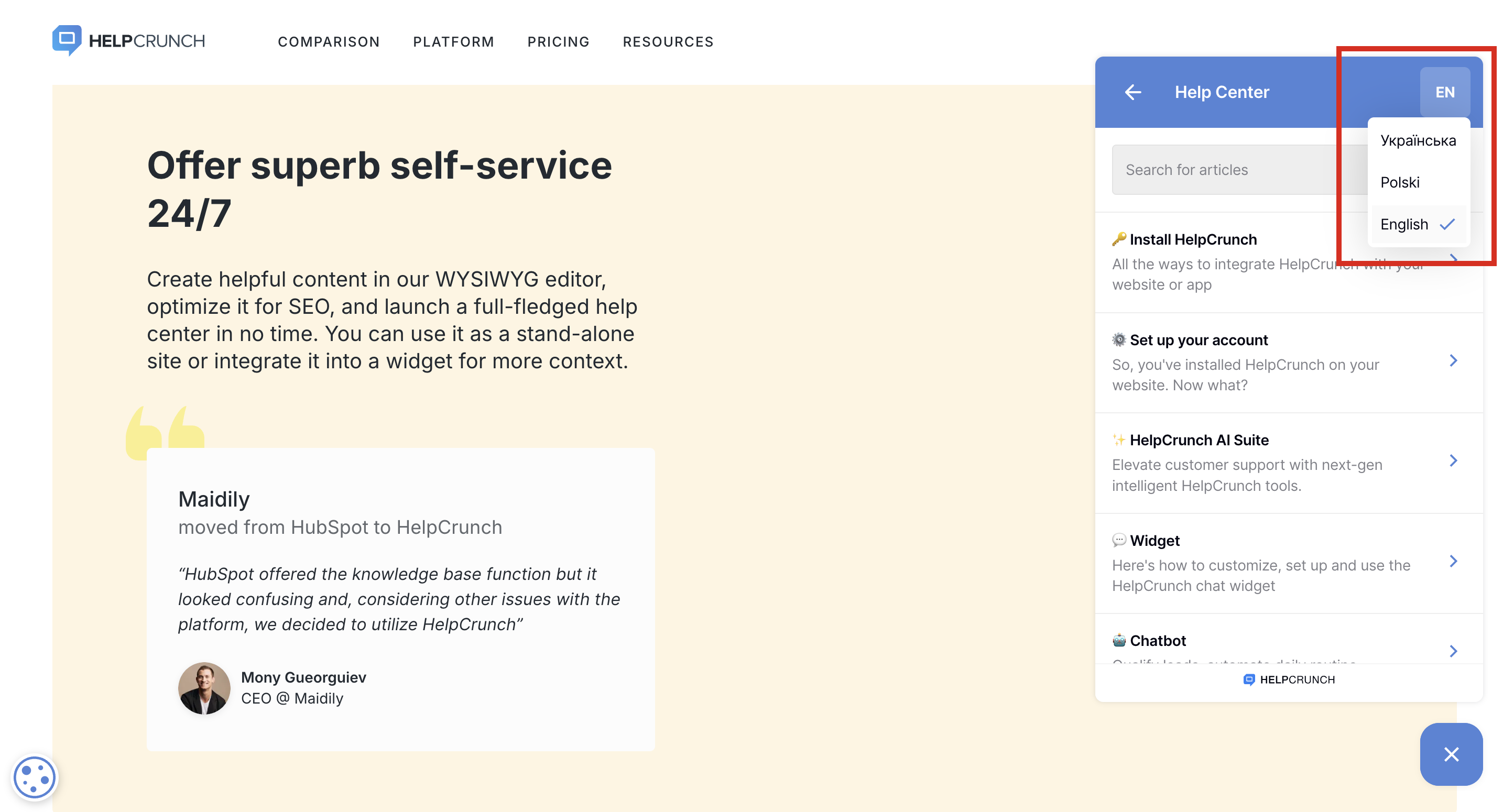
The selector displays all active languages. When a user switches language, they are redirected to the corresponding translated version of the Knowledge Base.
How to add a new translation language
To create a new language:
-
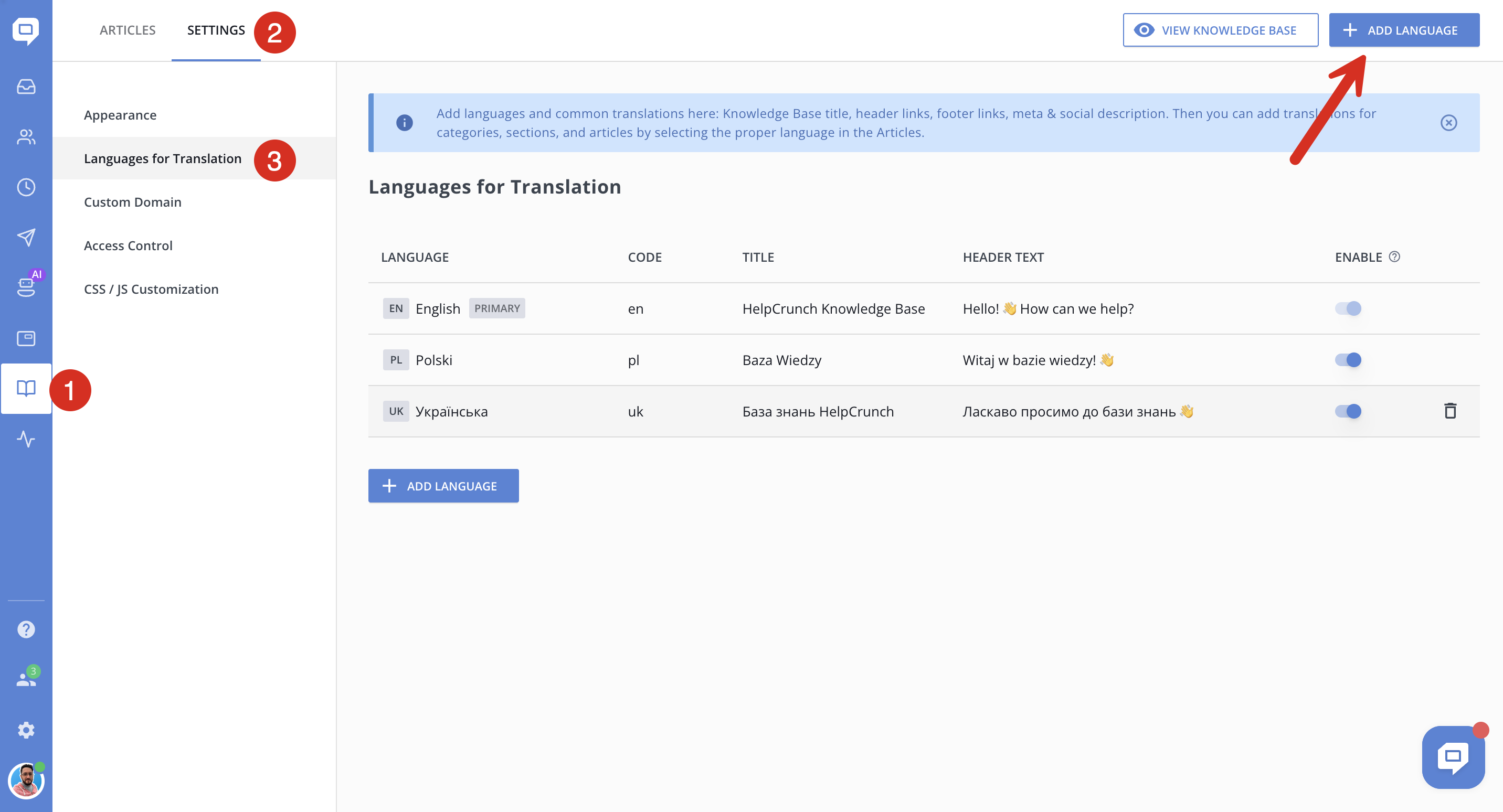
Go to Knowledge Base → Settings → Languages for translation
-
Click the “+ Add language” button in the top-right corner
-
Select the required language from the dropdown list
(If your language is not available, contact our support team via chat)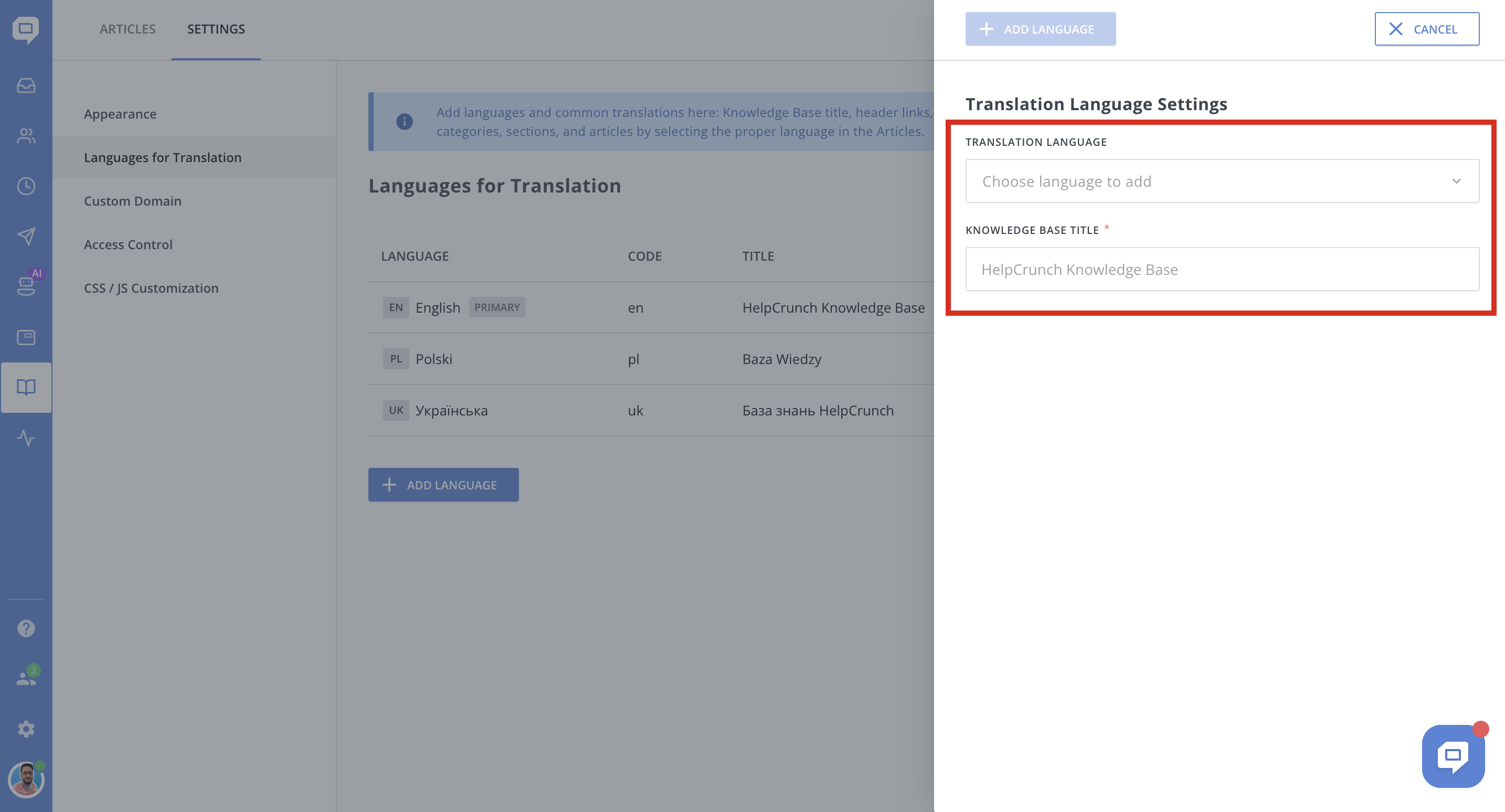
-
Enter the Knowledge Base title for that language
-
Save changes
Translation Language Settings
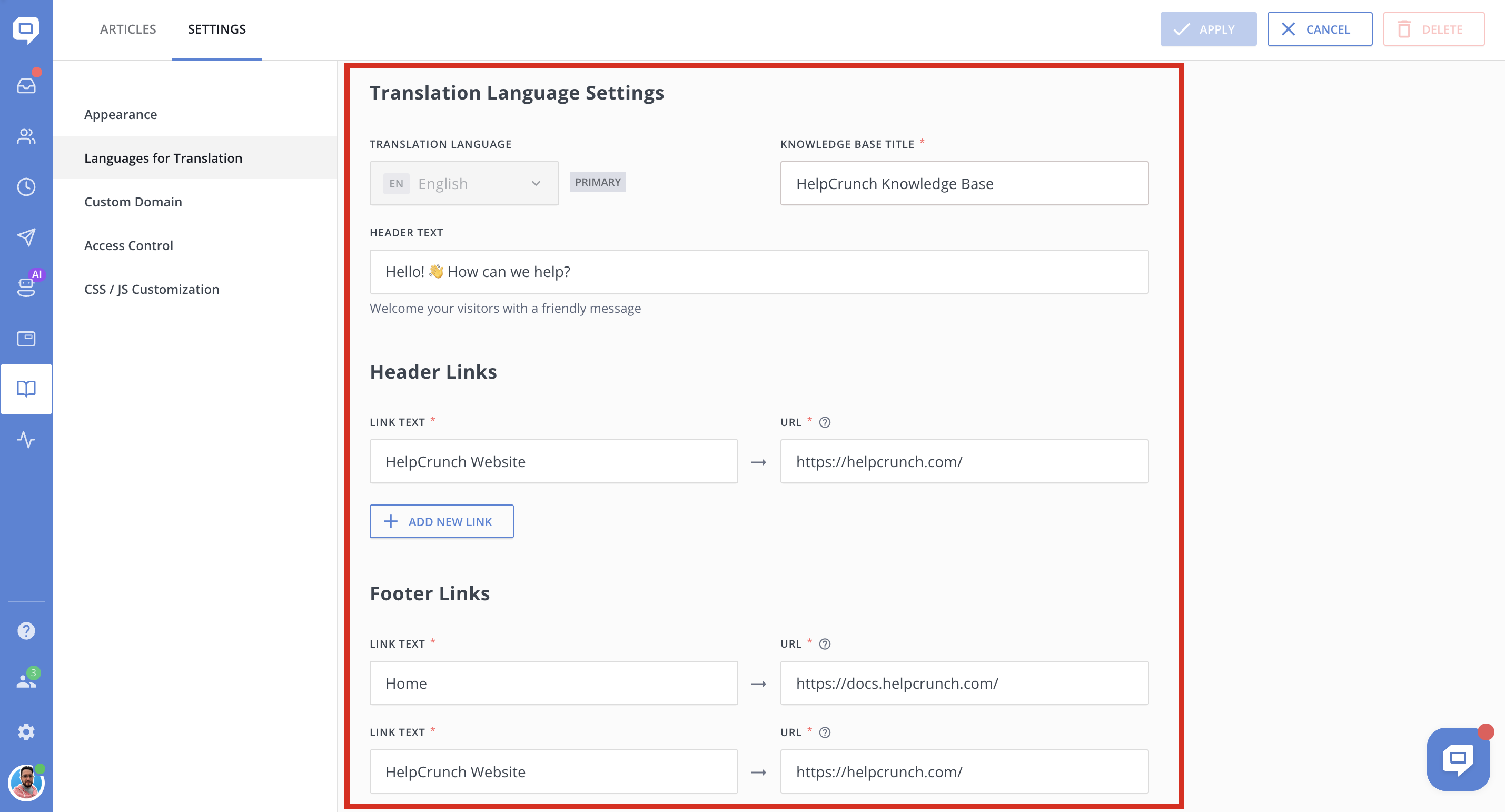
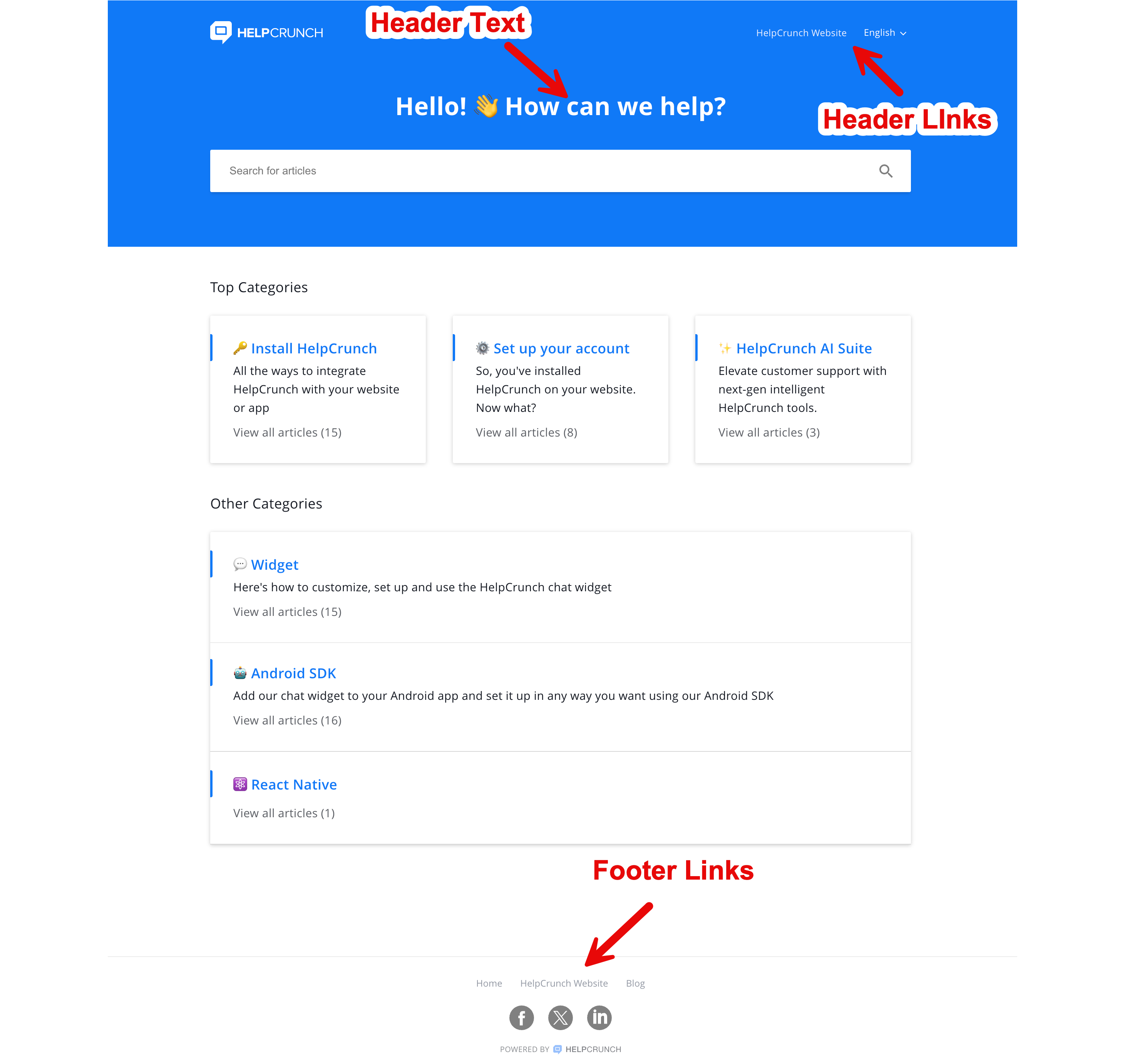
Each language in the list has its own configuration:
-
Knowledge Base title
-
Header text
-
Header links
-
Footer links
-
SEO and social media settings
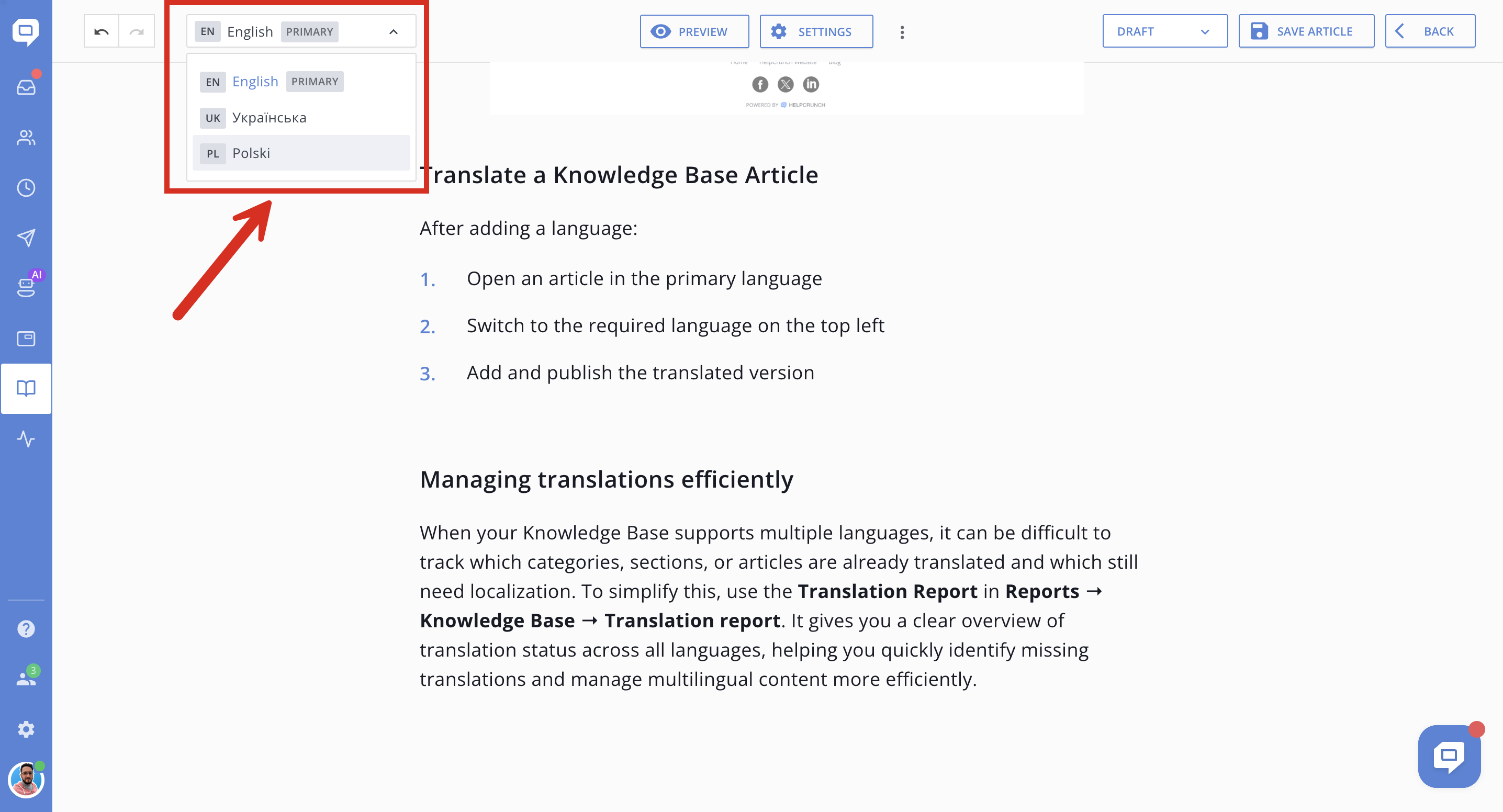
Translate a Knowledge Base Article
After adding a language:
-
Return to categories and open an article in the primary language
-
Switch to the required language on the top left
-
Add and publish the translated version
Managing translations efficiently
When your Knowledge Base supports multiple languages, it can be difficult to track which categories, sections, or articles are already translated and which still need localization. To simplify this, use the Translation Report in Reports → Knowledge Base → Translation report. It gives you a clear overview of translation status across all languages, helping you quickly identify missing translations and manage multilingual content more efficiently.
Read more about the Translation Report
