You can manage your HelpCrunch plan and usage limits in Settings → Billing → Subscription. This guide covers starting a paid subscription, adjusting it as your team grows, and keeping your billing information up to date.
Start a free trial
HelpCrunch offers a 14-day free trial. You don’t need a credit card to sign up.
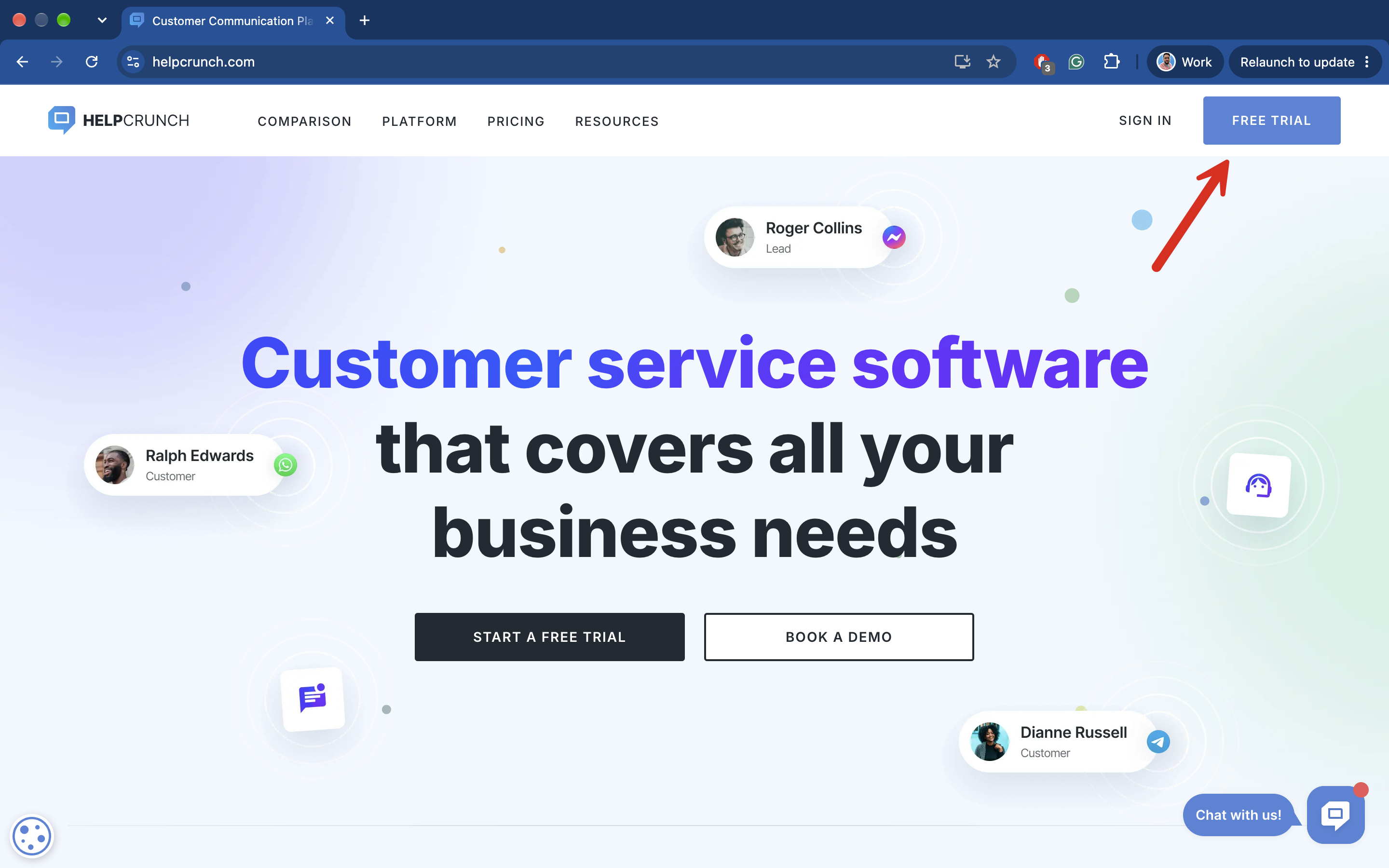
- Open the HelpCrunch sign-up page.
- Enter your full name, work email, account domain (literally any name, which will became your account URL), and password.
- Create your account and follow the installation wizard to add the chat widget to your website.
You can also skip the installation and return to it later. See our getting started guide for help setting up your widget, communication channels, and team.
Want to test email features? Contact us in chat to enable them for your trial.
Verify or change your subscription
Go to Settings → Billing → Subscription to check your current plan and included limits.
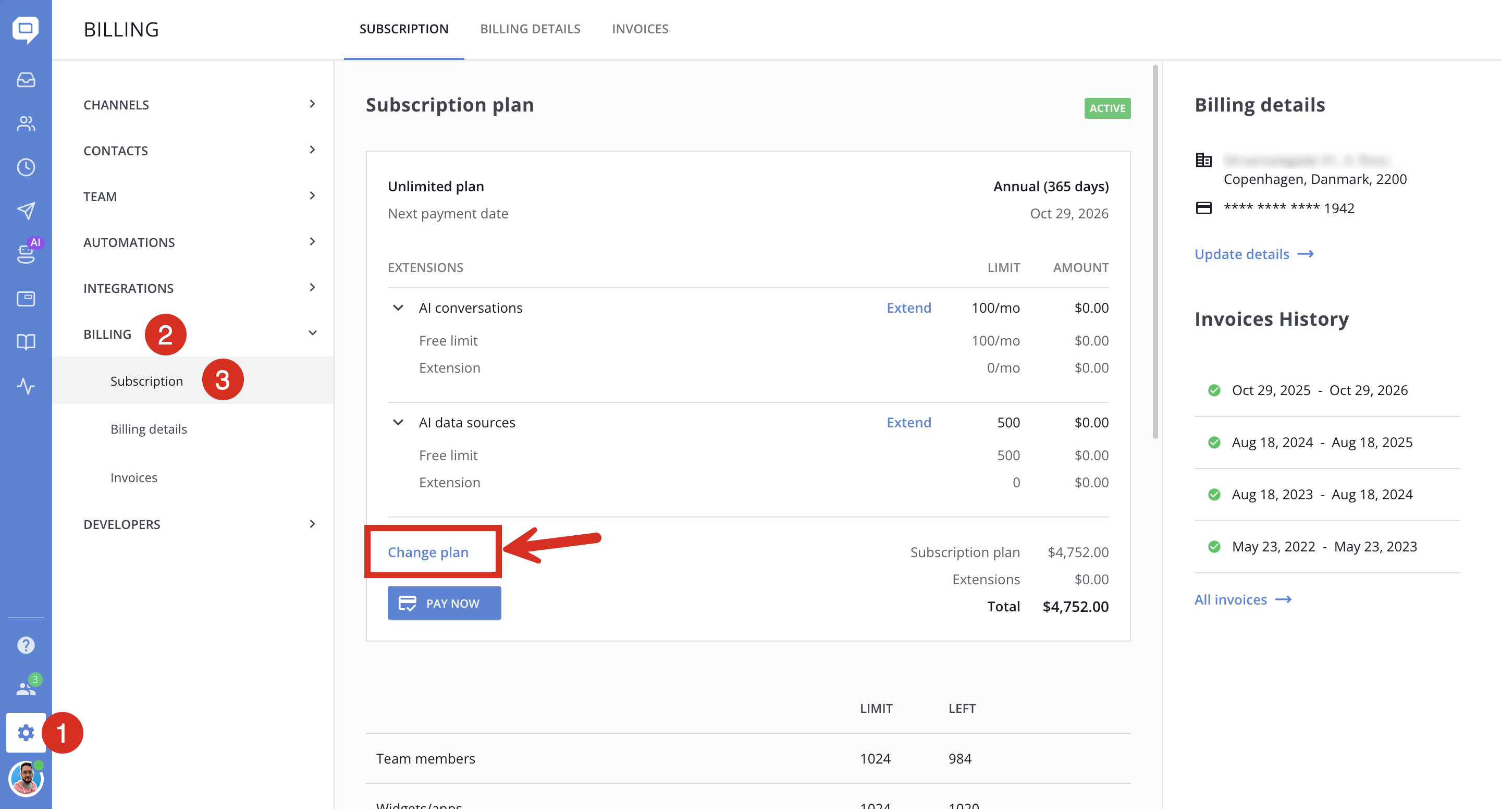
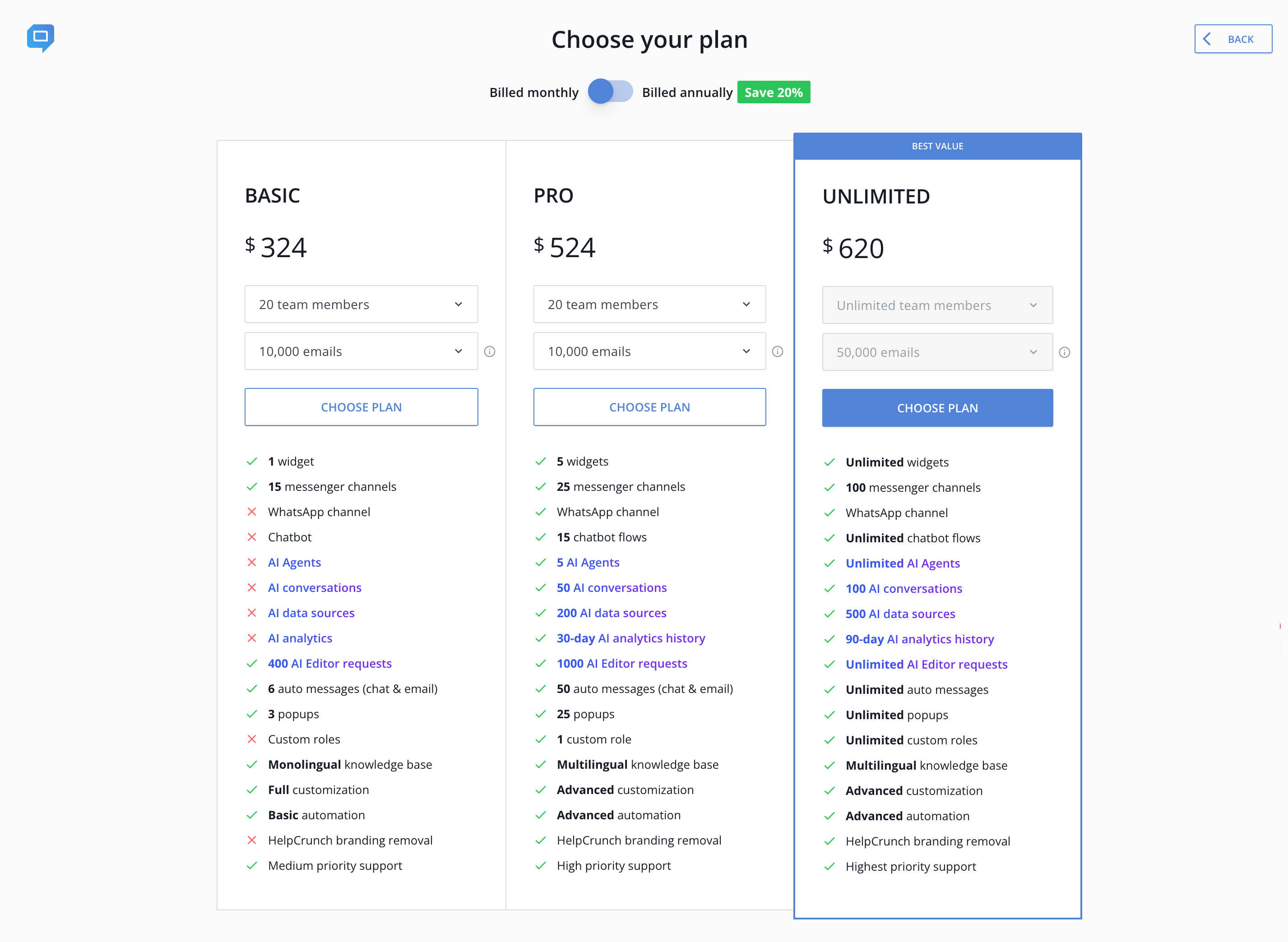
To start a paid subscription or change your existing one, click Change Plan and:
- Choose your billing period: monthly or annual. Annual subscriptions are paid upfront and save you 20% compared with monthly billing.
- Select a plan:
Basic: from $15/mo per team member.
Pro: from $25/mo per team member.
Unlimited: $620/mo for unlimited team members.
Compare features and current prices on the pricing page. - Set your team size. Choose how many team members you need. The Unlimited plan includes unlimited team members.
- Choose your email volume if you need to send emails from HelpCrunch.
Your email volume covers replies from the Inbox, email campaigns, and unread chat messages resent by email. - Review the total price and confirm your selection.
- If you haven’t yet added payment details, click Add Billing Information to continue.
- If you are on a free trial, your paid subscription will automatically begin here with the first payment.
- Only changing billing period between monthly and annual does not trigger payment.
- If your paid subscription is already active, changing your plan will prompt the payment. Proration will be applied within two business days.
Add more team members
If you’ve reached your team member limit, increase it in Settings → Billing → Subscription before inviting more people.
Then go to Settings → Team → Team Members to send invitations and assign roles. For detailed steps, see Invite new team members.
Increase your AI limits
AI Agents are available on the Pro and Unlimited plans. Each plan includes an allowance for AI conversations and data sources, which you can extend as needed.
- Go to Settings → Billing → Subscription.
- Click Extend next to the AI limit you want to increase.
- Select an extension and review the updated price.
- Click Confirm New Limit.
See AI Agents pricing and limits for included allowances and what happens when you reach them.
Add or update your billing details
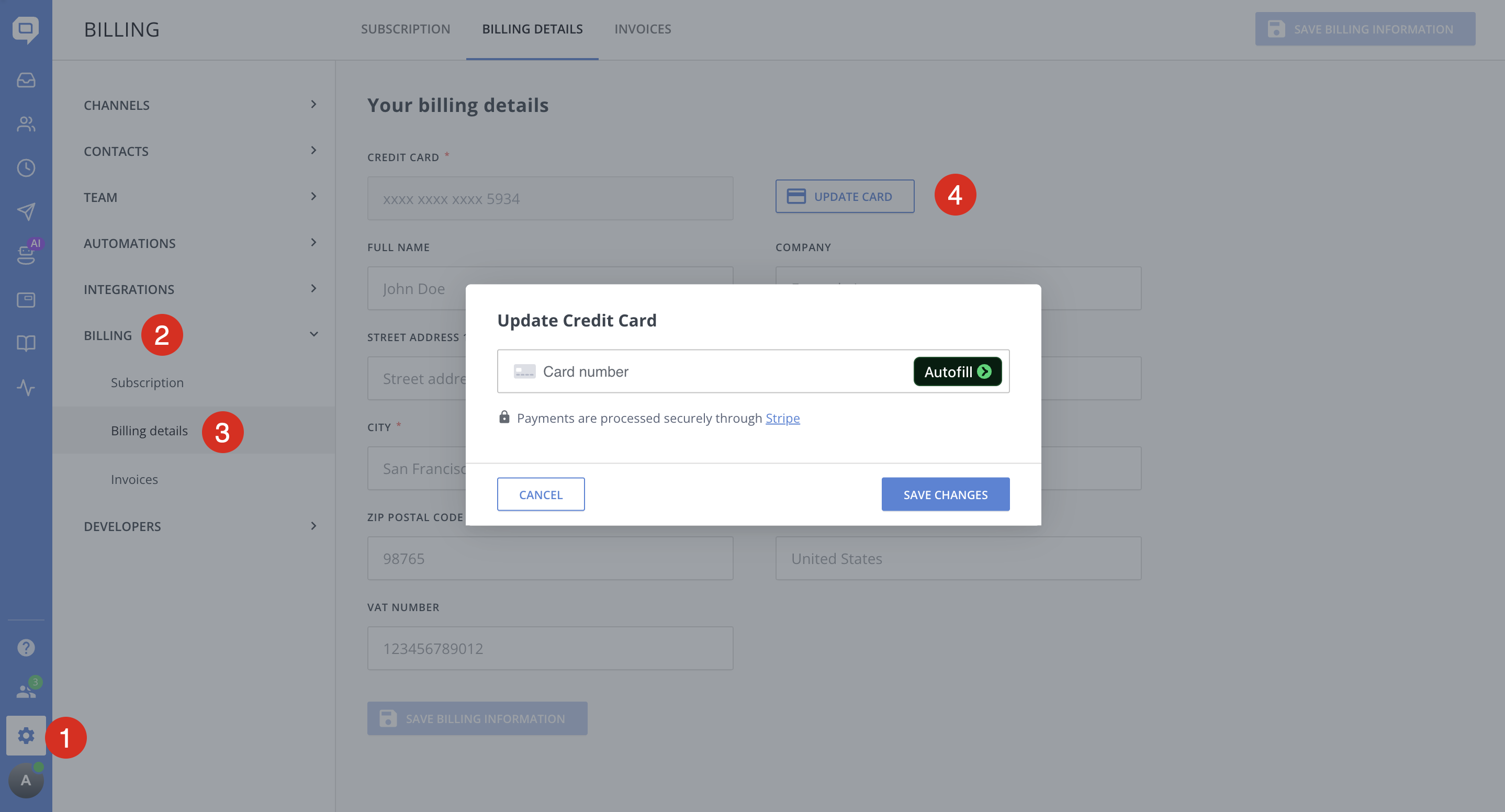
Open Settings → Billing and select Billing details.
- To add payment details: enter your company and billing information, complete the card details, and click Save billing info.
- To replace your card: click Update card, enter the new card details, and save your changes.
Note: If you add billing information during your free trial, you’ll be charged automatically when the trial ends.
Download an invoice
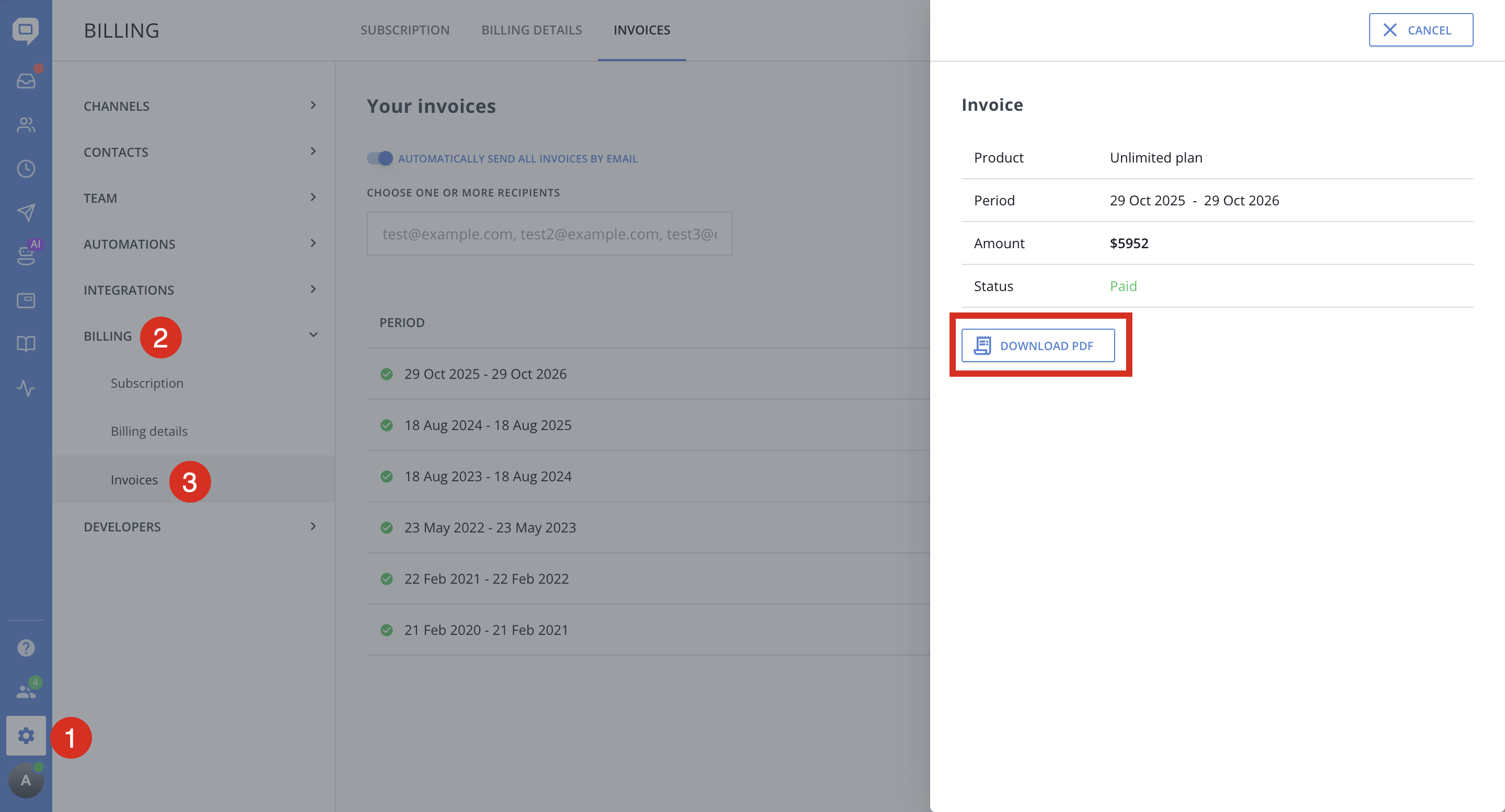
- Open Invoices under Settings → Billing.
- Select the invoice you need.
- Click Download invoice in the side panel to save it as a PDF.
How to cancel HelpCrunch subscription
We highly recommend contacting our support team in chat before canceling.
You can cancel your subscription from Settings → Billing → Subscription.
Important: Canceling your subscription disables your HelpCrunch account, including access to your contacts and conversations.
