HelpCrunch offers different chat assignment options for better flexibility and for you to handle high numbers of chat requests easily and evenly.
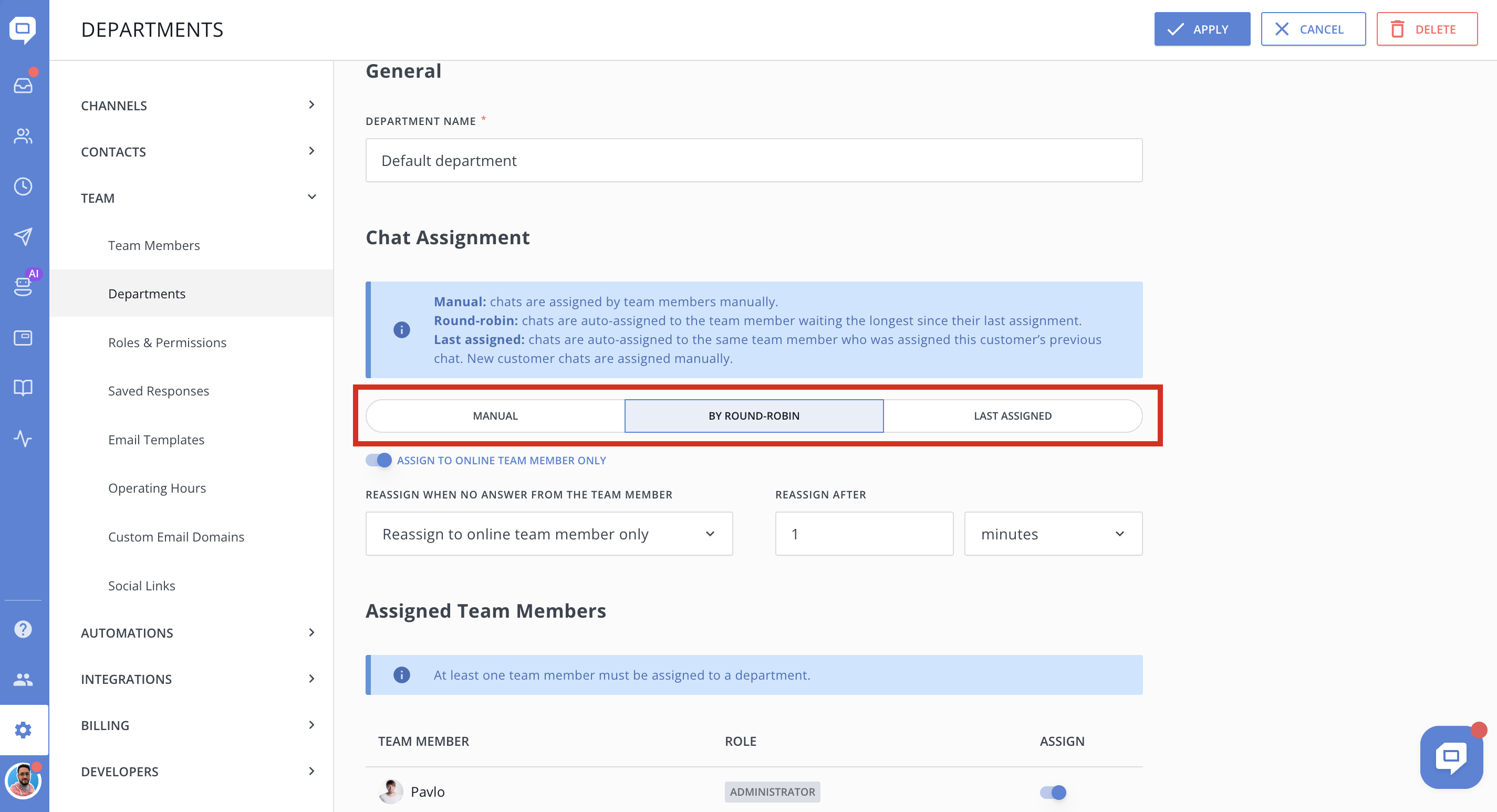
If you have more than one person in your team handling chats - we recommend creating a department. In the department settings, you'll find that you can assign chats:
Manual chat assignment
It's as simple as it sounds. All new chats come unassigned to your shared inbox. First person who writes any word to a chat - is assigned to it automatically and then can re-assign chat to another team member or department manually.
Round robin
Round robin load balancing is a simple way to distribute client requests across a group of employees.
In a nutshell, client requests are forwarded to each agent in turn. For example, imagine you have three agents, Sara, Tom, and Paul.
- The first request is sent to Sara.
- The second request is sent to Tom.
- The third request is sent to Paul.
- The fourth request is sent again to Sara and so on...
The load balancer continues passing requests to agents based on this order. This ensures that the load is distributed evenly to handle high traffic.
Assign to online team members only
When using automatic chat assignment by Round robin, you can control who chats are assigned to and what happens if an agent doesn’t reply.
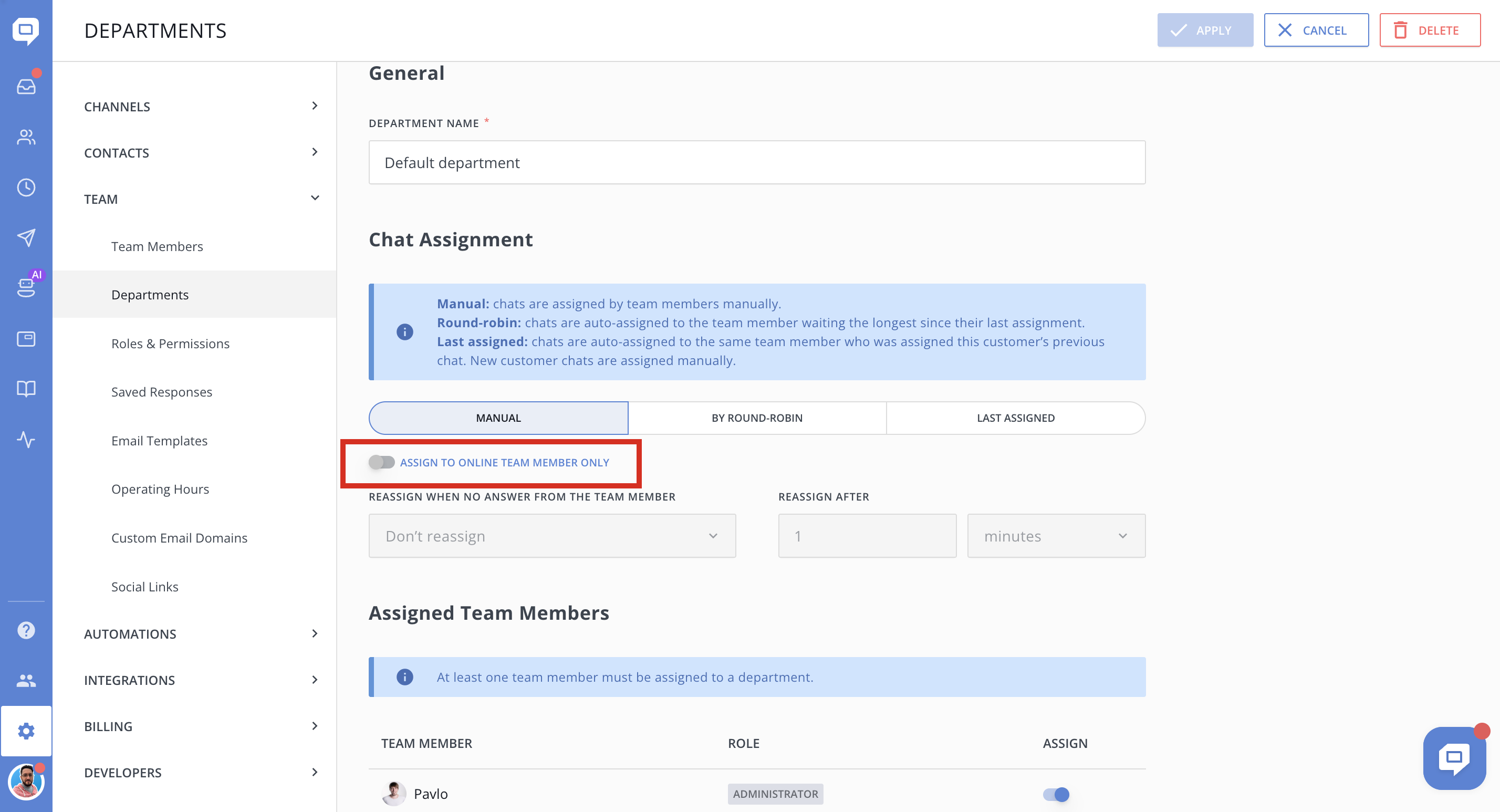
Enable the Assign to online team member only toggle if you want new chats to be assigned exclusively to agents who are currently online.
-
If the toggle is ON, chats will be assigned only to online team members.
-
If the toggle is OFF, chats can be assigned to both online and offline team members.
Reassign chats if there is no reply
Below the toggle, you can define what happens if the assigned team member doesn’t respond.
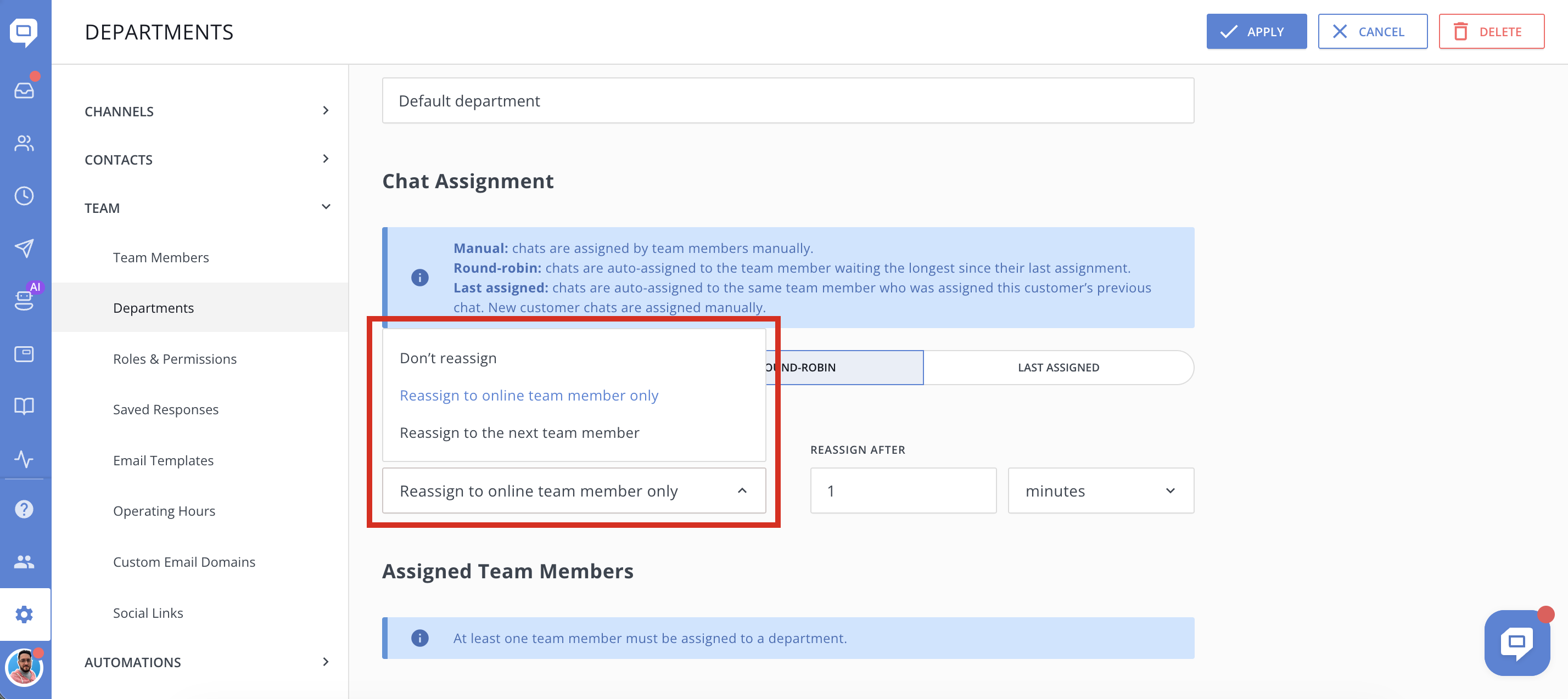
In the Reassign when no answer from the team member dropdown, choose one of the following options:
-
Team member who is online
Reassigns the chat to the next available online team member (within the same department) after the specified time. -
Team member who is online or offline
Reassigns the chat to the next team member (within the same department), regardless of their online status. -
Do not reassign
The chat stays assigned to the original team member.
Reassign after
Use the Reassign after field to set how long HelpCrunch should wait before reassigning the chat. You can define the delay in seconds or minutes.
To last assigned person
A chat will be assigned to a team member who was assigned to the last chat of this customer. Chats from new customers will need to be assigned manually.
