
The Translation report helps you monitor how complete your Knowledge Base is across different languages. It provides a clear overview of which categories, sections, and articles are translated - and which still require attention.
The Translation report gives you a structured way to:
-
Detect untranslated content instantly
-
Track translation progress
-
Maintain parity between language versions
-
Prepare your Knowledge Base for launch in a new region
How to access the Translation Report
-
Go to the Reports → Knowledge Base section in the left sidebar.
-
Click Translation report.
-
Choose what you want to review:
-
Categories
-
Sections
-
Articles
-
You can switch between these tabs at the top of the page.
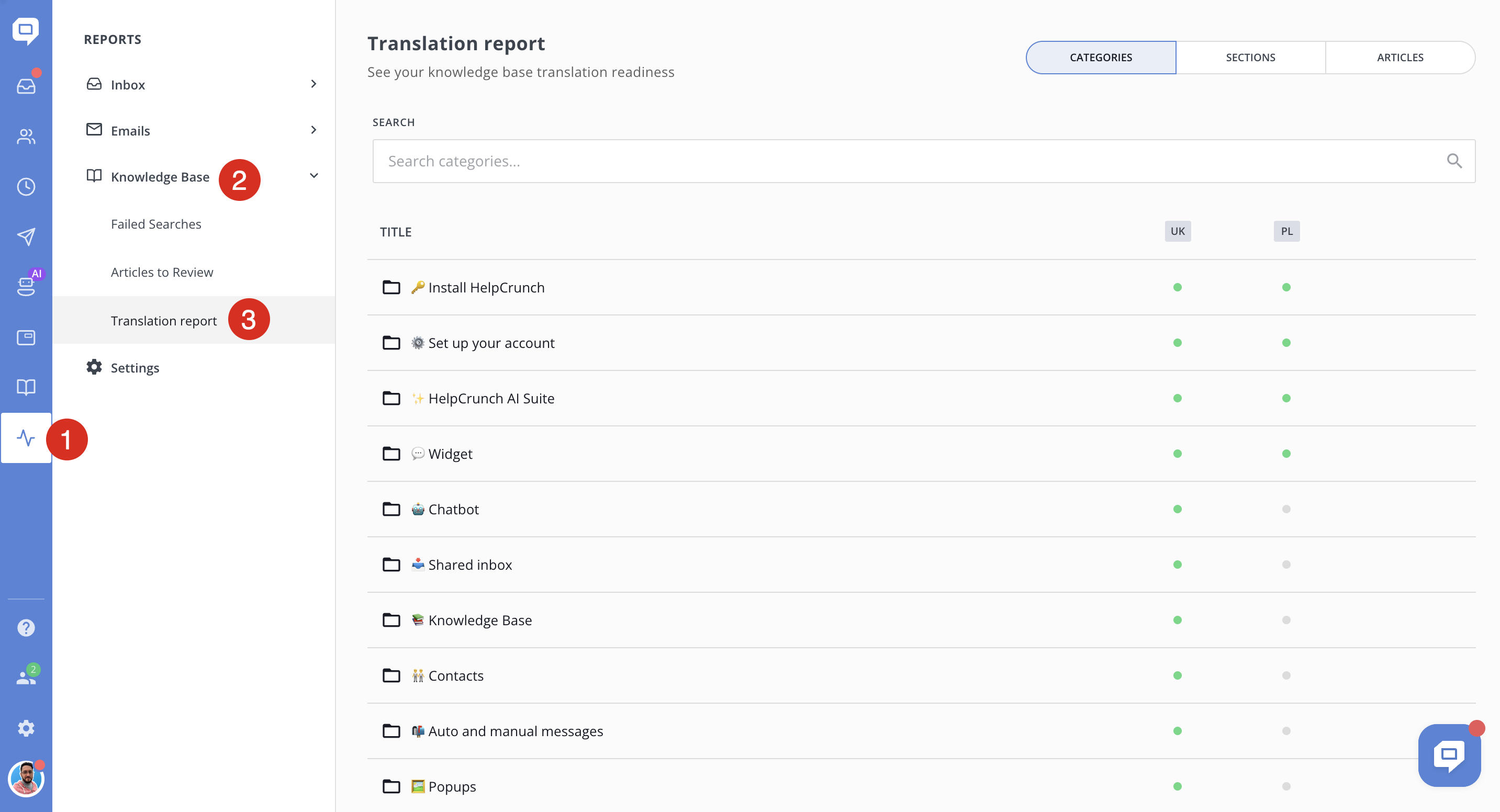
Understanding the layout
The report is organized in a table format:
-
The left column shows the item title (Category, Section, or Article).
-
The right columns represent each enabled language (for example, EN, PL, etc.).
-
Each cell contains a status indicator (a colored dot).
There is also a search bar at the top to quickly locate a specific category, section, or article.
The Translation report uses color-coded dots to show translation status.
🟢 Green dot - the item is translated and published in that language.
⚪ Grey dot - the item is not translated in that language.
🟠 Orange dot - the item is translated but not published.
If you manage multiple languages, this report should become part of your regular content workflow.
